
How to Create Image Quotes from Reusable Templates (Step-by-Step)
 By APITemplate.io
Quote graphics are some of the most shared content on social media — and some of the most tedious to make one at a time. Here is how to build a reusable quote template once and generate every image after that from data.
TL;DR:
What This Blog Covers:
How to build a reusable image-quote template in APITemplate.io, and how to generate an unlimited number of on-brand quote graphics from it by changing data rather than design.
Key Points:
- A reusable template separates the design from the content, so the design work happens once
- APITemplate.io ships ready-made presets, including Instagram quote layouts you can start from
- Naming your visual elements —
text_quote, notText 3— is what makes the template automatable later - The API Console turns the template into a JSON payload you can preview instantly
- The same template works by hand, through Zapier or Make.com, or from your own code
- One template plus a spreadsheet of quotes is a month of content
Best For:
Social media managers, content creators and small marketing teams who publish quote graphics regularly and want consistency without the repetition.
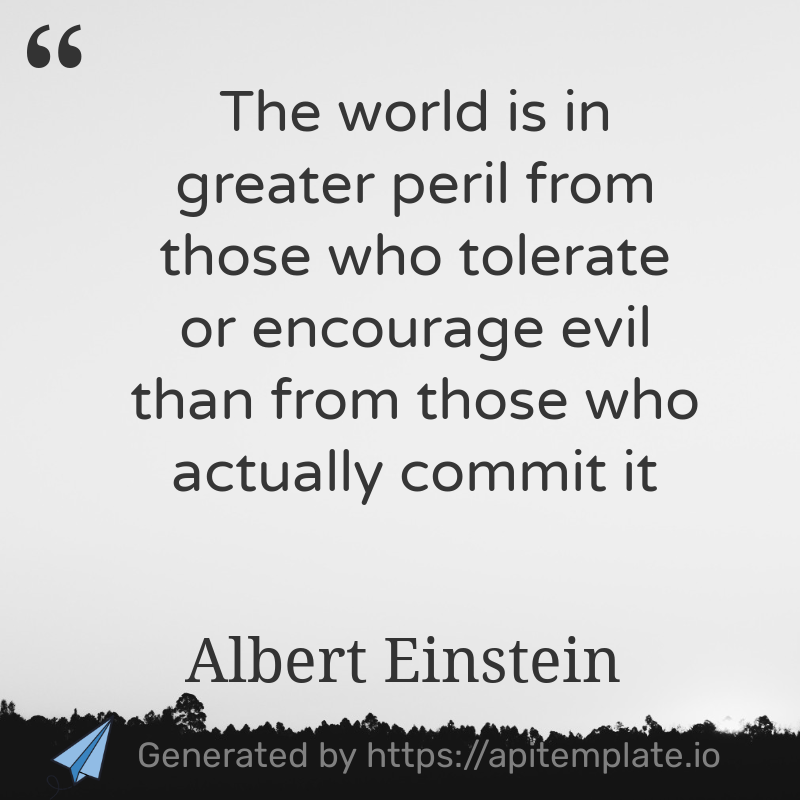
Why quote images are worth automating
A picture paints a thousand words, and on social media a well-set quote reliably outperforms the same sentence posted as plain text. It stops the scroll, it is trivially shareable, and it carries your brand into other people’s feeds every time someone reposts it.
The problem is not making one. It is making the two hundredth. Each one is the same five minutes: open the design file, paste the text, resize it because this quote is longer than the last, check the contrast, export, upload. Nothing about it is hard, and all of it is repetitive — which is exactly the profile of work that should not be done by a person.
The fix is to stop treating each image as a design job. A reusable template fixes the layout, typography, colours and logo placement once. After that, a new image is a new line of text.
This is the same principle behind our wider social media image automation work, and it applies well beyond quotes — banners, product cards, event graphics and infographics all benefit from it.
What a reusable template actually gives you
Three things that compound:
Consistency. Every quote uses the same font, the same margin, the same brand colour. Nobody has to remember the hex code, because the template remembers it.
Speed. Changing one field and pressing preview is measured in seconds, not minutes.
Automation. Because the template exposes named properties, anything that can send JSON can generate an image — Zapier, Make.com, Airtable, a scheduled script, or your own app through the image generation API.
The third one is the reason to name things carefully as you build. We will come back to it.
Before you start
You need an APITemplate.io account. The free plan includes 50 images a month, which is plenty to build a template and test it properly. No design software is required — the visual editor runs in the browser.
Step-by-step: build your quote template
Step 1: Register and log in
Sign up at app.apitemplate.io and log in to the dashboard.
Step 2: Open Manage Templates
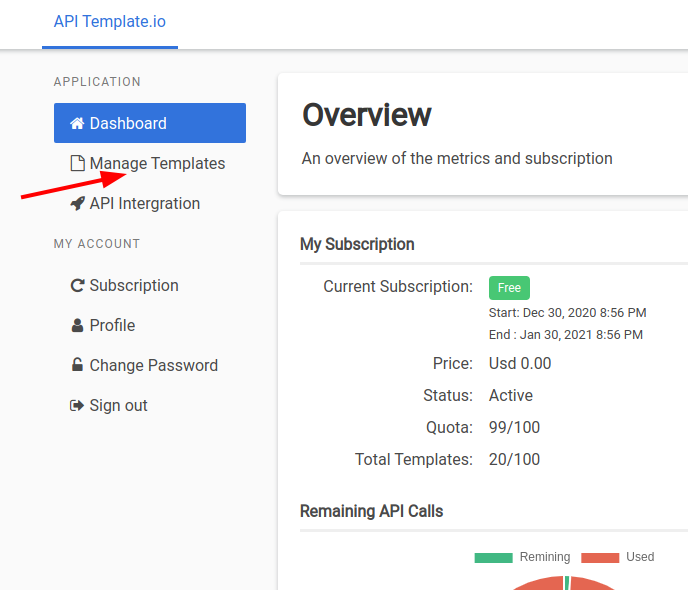
In the dashboard, click Manage Templates in the left menu. This is where every template you own lives.
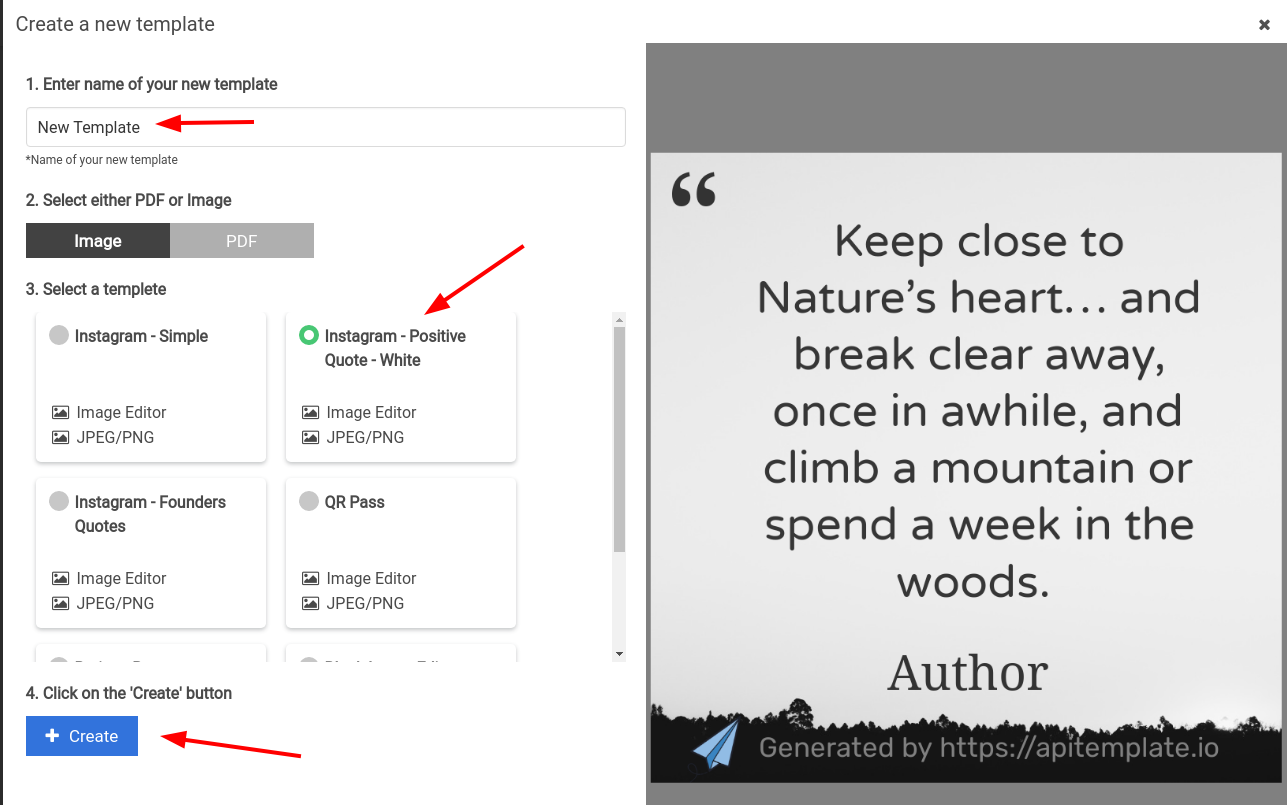
Step 3: Create a new template
Click the New Template button.
Step 4: Pick a starting preset
Select Instagram – Positive Quote – White and press Create. Starting from a preset saves you setting up the canvas size and a sensible type scale; you can change everything about it afterwards.
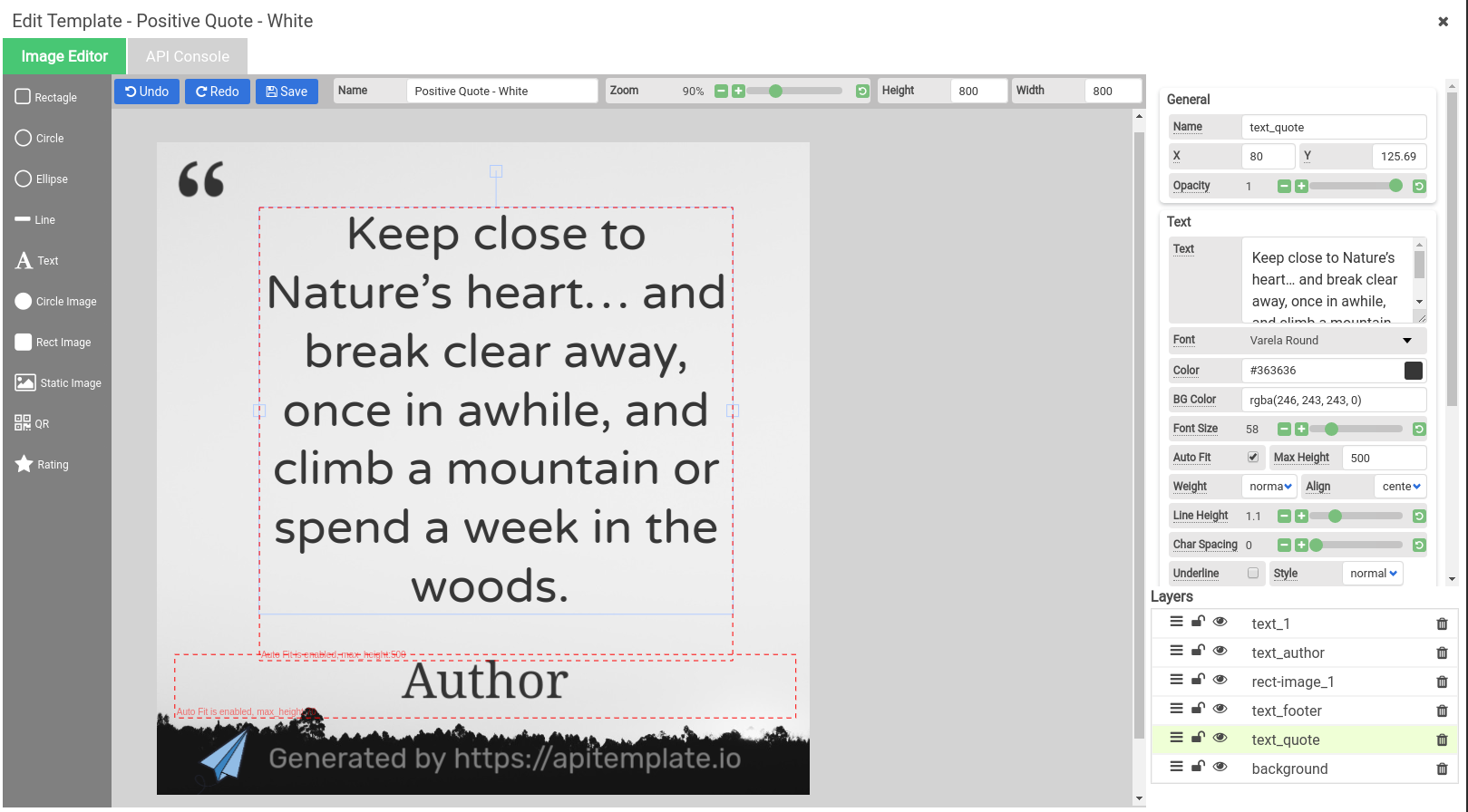
Step 5: Launch the Image Editor
Back in the template list under Manage Templates, click Launch Image Editor on your new template to start editing.
Step 6: Make it yours — and name your elements
Change the text, the background, the colours and the type until it looks like your brand rather than our preset.
Then do the part that everyone skips: rename the dynamic elements. The quote text element should be called something like text_quote, not Text 3. That name is the key you will use in the JSON, in Zapier and in every integration afterwards. A template whose elements are meaningfully named is one anybody on your team can automate; one full of Text 3 and Text 7 is a puzzle.
Step 7: Generate the JSON in the API Console
Open the API Console tab and click Generate JSON Data for Common Properties if the sample JSON is empty. You will get a payload describing every overridable property in the template.
Change the text property of text_quote and it will be rendered into the image. This JSON is the contract between your design and everything else — it is exactly what an automation platform or your own code will send.
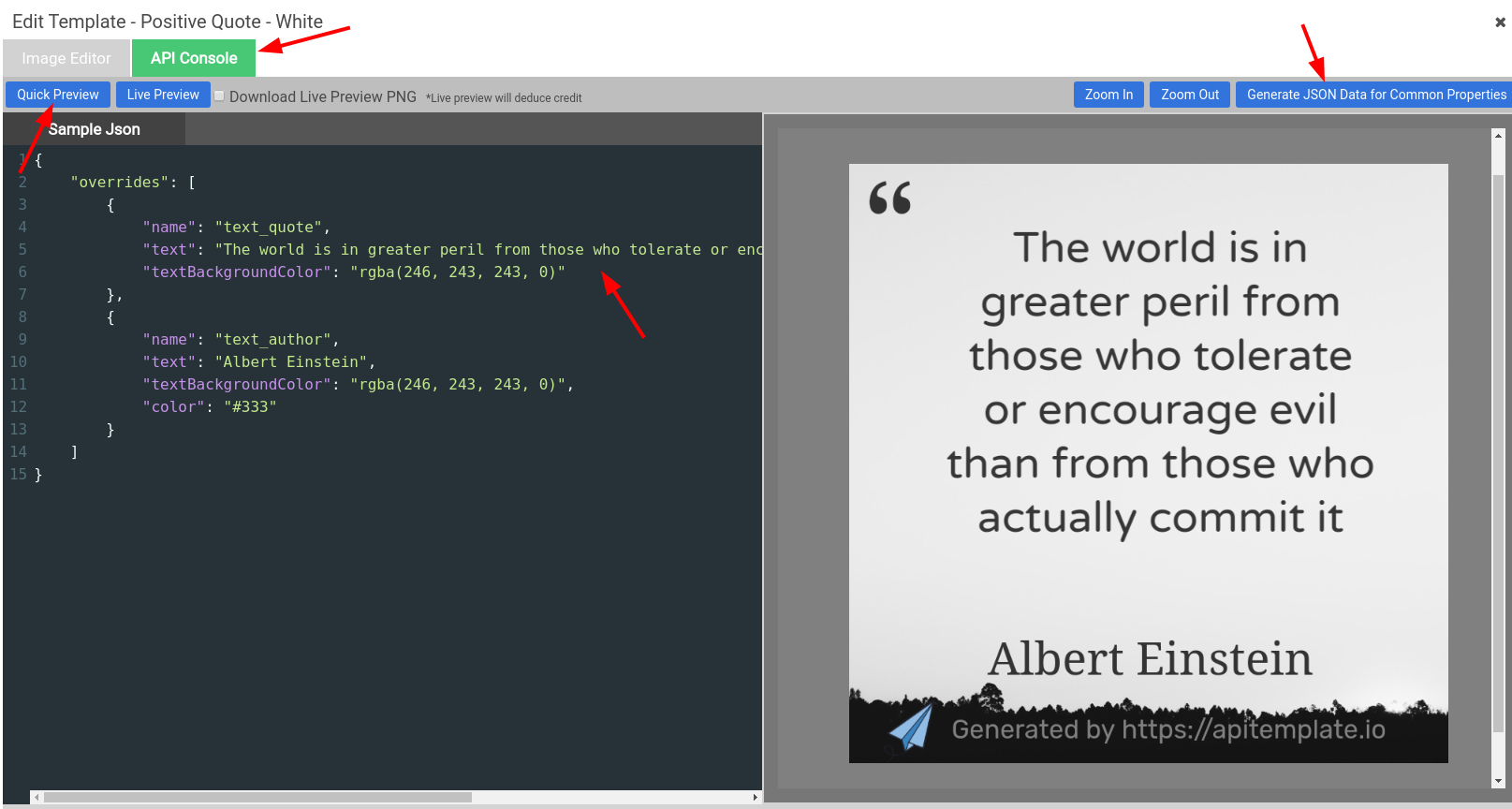
Step 8: Preview the result
Click Quick Preview to see the image. You can also tick Download Live Preview PNG and press Live Preview to save a copy. It will look like this:
Step 9: Start sharing
That is a publishable asset. Post it, schedule it, or move on to the next section and stop making them by hand entirely.
Design tips for quote templates that hold up
Quote graphics fail in predictable ways. A few things worth building in from the start:
- Design for your longest quote, not your favourite one. Text that fits at 40 characters will overflow at 180. Set a sensible maximum, use auto-fit sizing, and test with something genuinely long. Our guide to responsive templates using auto-position covers the mechanics.
- Keep contrast honest. Pale text on a photographic background looks great on one image and unreadable on the next. A solid or gradient overlay behind the text removes the gamble.
- Leave room for attribution. A separate
text_authorelement is far easier to automate than baking the name into the quote string. - Make one template per platform. A square Instagram post and a landscape X card are different canvases. Duplicate and adjust rather than compromising on both.
- Put your handle somewhere. These images travel. Make sure they carry your brand when they do.
Going from one image to a hundred
Everything above is still manual — it is just much faster. The step change comes when the data stops being typed in.
Pick whichever fits how you already work:
- Zapier — a trigger supplies the quote and a single action renders the image. Our full step-by-step guide covers it end to end.
- Make.com — better for branching logic and scheduled batches.
- Airtable — keep a content calendar of quotes and generate an image per row.
- Google Sheets and Zapier — the same idea with a spreadsheet as the queue.
- The REST API — call it directly from your own application.
In every one of those, the template you just built is the thing being called. You do not rebuild it per channel.
Conclusion
Image quotes are cheap to produce and easy to share, which is exactly why doing them by hand is such a poor use of time. Building the design once and driving it with data turns a recurring five-minute task into a one-off afternoon — and gives you a template your whole team can use without anyone touching a design file.
Start with one template and a handful of quotes. Once the shape is right, connect it to Zapier or Make.com and let your content calendar do the rest.
Sign up free — 50 images a month, no credit card required. Or read more about automated image generation and what else you can build with it.
Other Blog Articles
5 Easy Steps to Automate Image Generation API – FREE with Zapier, Google sheets, and APITemplate.io
In this tutorial, we are going to automate the process of image generation with Zapier, Google sheets and APITemplate.io to create custom product images based on a predefined template and a product listing.

Why Marketing Automation Is Important to You and Its Benefits
APITemplate's image generation API helps you design and automate social images or banners. You can create variants of images based on image templates to keep your branding consistent across all your social media profiles.

How to Automate Job Posting Images for LinkedIn
In this tutorial, we will walk you through the process of automating job posting images on LinkedIn with Zapier, Airtable, and APITemplate.io